Stop treating your store like a brochure. Learn how to budget, evaluate costs, and choose the right ecommerce website design company.


How to Develop a WordPress Website for No-Code Builders and Coders
Jun 2, 2026
about 23 min read
How to develop a WordPress website? Choose your hosting, install WordPress, build with Elementor or PHP, then maintain security and performance.
How to Develop WordPress website comes down to one fork: build with visual tools, or write custom code? WordPress runs on both, but the paths diverge fast in skill, tooling, and outcome, pick wrong and you rebuild. This guide walks both. You get a foundation section every builder needs, then a no-code workflow for non-technical users, a custom code workflow for developers, and a post-launch section on maintenance, SEO, and troubleshooting. Pick the path that fits your goals.
Foundational Steps for How to Develop a WordPress Website
Three decisions shape every WordPress project before you write a line of code or install a theme. Why you are using WordPress, where the site will live, and how to install it. Settle those and the rest applies to both paths.

Why Use WordPress? The Benefits That Matter
WordPress is free, open-source software, a content management system or CMS. It runs roughly 42.2% of every site on the internet, going by W3Techs data from 2025. Narrow that to sites on a known CMS and the share climbs to about 61%.
Cost is where the case is strongest, so start there. The software itself is free. What you pay for is hosting and a domain, around $50 to $200 a year for a basic setup. The license stays at zero no matter how the site grows.
The plugin ecosystem is where WordPress pulls ahead. The official directory holds over 59,000 plugins covering contact forms, SEO tools, membership systems, and payment gateways, so common features rarely get built from scratch, you assemble them. That, more than the price, is the real draw.
Search engines take to the structure as well. Clean URLs and editable title tags make ranking on Google less of a fight, and a plugin like Yoast handles the rest without heavy technical work.
Scalability is a genuine strength, with one condition. A simple blog and an enterprise news platform can both run on the same core. The architecture grows with you, but only as far as your hosting and caching will carry it.
Choosing Your Domain and Hosting Plan
Your domain is your web address. Your hosting is the server that stores your files and serves them to visitors. WordPress can't go live without both.
Picking a domain is mostly common sense: keep it short, skip the hyphens, and use .com if your audience is global. Register it through Namecheap, Porkbun, or GoDaddy and buy it separately from your hosting, which makes switching hosts later far less painful. One caveat worth knowing: Google Domains has shut down, and its accounts moved over to Squarespace.
Hosting is where the decision bites hardest, and there are three tiers. Shared hosting from the likes of Hostinger or Bluehost puts many sites on one server. It's the cheapest way in at $3 to $10 a month, performance sags the moment traffic spikes and support is a coin flip.
Managed WordPress hosting, from SiteGround, WP Engine, or Kinsta, hands the whole environment to the host. Updates, caching, security patches, and staging are handled for you, which is why it runs $25 to $80 a month. VPS and cloud hosting like DigitalOcean or AWS Lightsail give you your own server and maximum control, provided you have the technical chops to run it.
The usual advice is to start on the cheapest shared plan. We disagree. That low price tends to buy you slow load times and thin support, and debugging then becomes harder than it has any right to be.
Managed hosting from SiteGround or WP Engine costs more upfront, no argument there. But you get server-level caching, daily backups, one-click staging, and support staff who know WordPress cold. On almost any project, the hours you don't lose to troubleshooting cover the difference.
Installing WordPress and Securing Your Site
Once your hosting is actually ready, WordPress goes up fast because most of these hosts give you a one-click tool right inside cPanel, Plesk, or whatever custom dashboard they use. Under ten minutes. It handles the heavy lifting, creating the database and copying those core files, before asking for a site title, admin username, and a password. Some purists insist manual setup is better, they say you learn more.
That older path takes four steps. You download files from WordPress.org, upload them to a remote server over FTP, build a MySQL database, and run the setup wizard. You might think this teaches basic server design, but honestly, doing it the manual way just burns your time. Look, the one-click tools just get it done faster.
You need to turn on HTTPS immediately so SSL (Secure Sockets Layer) encrypts the visitor data. Lots of hosts wire up a free Let's Encrypt certificate for you automatically, but if yours balks, turn it on yourself from the panel. Just don't forget that SSL. If you don't do this, browsers will spit security warnings at every visitor and your search rankings will fall.
The No-Code Workflow for How to Develop a Website Using WordPress
This is the full path for anyone who doesn't plan to write a line of custom code. WordPress's visual tools have come a long way, and a non-technical user can now build a polished, professional site without ever opening a code editor. The steps below carry you from a blank install to a live website.
First Steps in the WordPress Dashboard
The WordPress admin area lives at /wp-admin on your domain. Before you build a single page, settle a handful of settings.
Under Settings > General, set your site title, tagline, and timezone. Under Settings > Reading, if you'd rather show a static homepage than a feed of posts, switch "Your homepage displays" to "A static page" and assign the right pages. Then open Settings > Permalinks and change the URL structure to “Post name”, that's what gives you clean addresses like yourdomain.com/about. Do this one before you publish anything. Change it later and you're stuck wiring up redirects.
The Posts versus Pages distinction is worth getting straight now, before it bites you. Pages hold static content: About, Services, Contact. Posts hold time-stamped content, like blog articles. If you plan to run a blog alongside the main site, how to develop a blog website covers the structural calls that shape both content organization and SEO. Publish something in the wrong section and you've built yourself a structural headache for later.
Selecting Your Theme and Page Builder
Your theme sets the visual framework. A page builder is a plugin that lets you design pages by dragging blocks into place. Together they cover most design needs without a line of code.
Here's the common mistake: pick the theme first, then try to wedge a page builder into it. Theme bloat is why it backfires, when a theme ships its own design system, shortcodes, and layout tools, those collide with third-party page builders and drag your load times down. The cleaner approach runs the other way. Choose your page builder first, then pick a theme built for it.
Elementor is the most-used builder out there, it's north of 10 million active installs. Go with it and you'll want the Hello Elementor theme alongside it, a deliberately minimal, lightweight theme that exists to be an Elementor canvas and nothing else. That pairing sidesteps the fight with a bloated theme entirely. Sites built this way came in 20–30% faster on initial performance tests than Elementor bolted onto a feature-heavy theme.
Gutenberg is WordPress's built-in block editor, and it ships with WordPress at no extra cost. Its full-site editing (FSE) capabilities have grown a lot since WordPress 5.9. For simple sites, it does the job nicely. For complex layouts or marketing pages, Elementor still hands you more control.
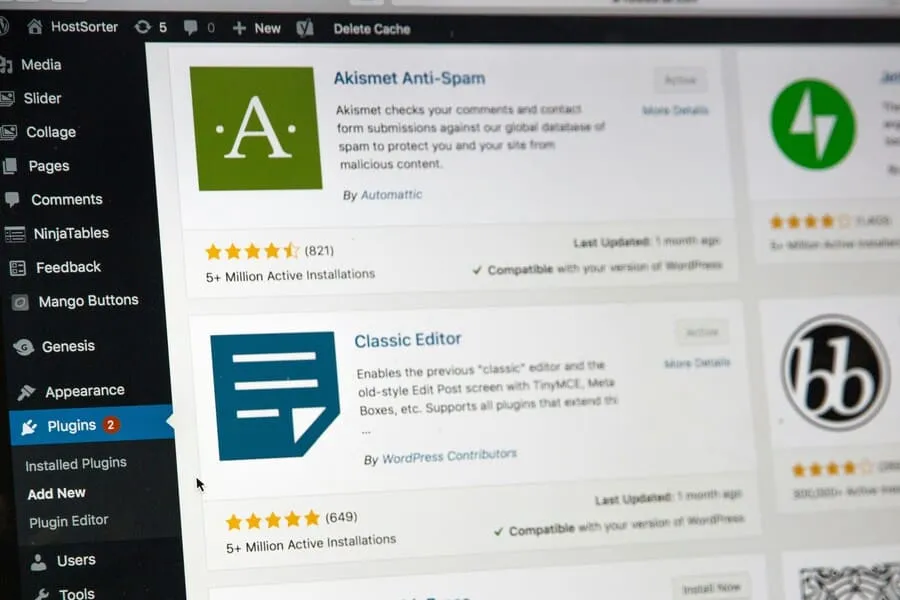
Installing either is quick. For a theme, go to Appearance > Themes > Add New, search, click Install, then Activate. For a plugin, it's Plugins > Add New, search, install, and activate.
Designing Your Site's Core Pages
Begin with the absolute basics under Pages > Add New, Home, About, Services, Portfolio, and Contact, and give each a title before launching the page builder.
It is tempting to start dragging widgets right into Elementor's sections and columns. Text blocks, image boxes, buttons, and forms. Live visual editing is fun. Honestly, it feels incredibly productive to sit there tweaking fonts, colors, spacing, and backgrounds in the left panel, but doing things page by page just creates visual sprawl later. You need to lock in the site-wide styles first, doing it individually is a trap.
Set strict rules for colors, fonts, the header, and footer using the Appearance > Customize panel or Elementor's Theme Builder (Pro version). Setting a fixed color scheme and font pair early on anchors the whole thing, making sure that global style actually maintains a pro look everywhere. Only after those base rules exist should the menu happen. Head to Appearance > Menus to add and arrange the pages, and assign that structure to the "Primary Menu" spot to populate the theme's header.
Extending Functionality with Essential Plugins
The base WordPress setup doesn't really have the tools a live site needs to function. People tend to grab too many add-ons, that is how sites break down over time. Just extra code weight. You keep things safe when you only install options with a large user base, recent updates, and strong scores.
To be fair, Yoast SEO has a longer track record, but Rank Math offers far more features on its free tier. Both of them generate XML sitemaps, which search engines look for anyway, run basic on-page checks, and add meta text fields to every page and post. As mentioned before, every extra plugin adds weight to the site, so don't run both.
Bots attack everything. Even low-traffic sites get hit constantly, so installing Wordfence or Solid Security will provide the basic firewall, daily malware scans, and login safety you need to keep things running.
Backups might seem like a later problem, but they simply cannot wait. Install UpdraftPlus early on, and set the tool to run daily saves that get ferried straight to Dropbox, Google Drive, or Amazon S3.
And yeah, the core software still lacks a default contact form. WPForms works quite well on the free plan, while Gravity Forms handles multi-step setups far better.
Serving pre-built HTML files means your visitors get faster load times. You should pay for WP Rocket, or run LiteSpeed Cache for free on LiteSpeed servers.
Final Checks and Launching Your Website
Looking done and being ready to launch aren't the same. Run this checklist first.
Start on mobile, since that's where most layouts quietly break. Open the site on a phone and a tablet, then use Elementor's responsive editor to fix any layout that breaks. Then hunt down broken links and forms. Click every nav item, submit a test form, and confirm the email notification actually lands. Open each page in your SEO plugin too. Every one needs its own title tag and meta description. No duplicates.
The settings are where a finished-looking site quietly fails. Go to Settings > Reading and confirm "Discourage search engines from indexing this site" is unchecked, the box everyone forgets. It gets switched on during development, it keeps your site out of search. Confirm your domain loads over https:// with a padlock in the address bar. Last, visit a URL that doesn't exist on your domain, a proper 404 page should come up, not a raw server error.
Pass all that, and you're ready to go live.
How to Develop a Website Using WordPress with Custom Code?
Honestly, visual editors look tempting at first, until you realize how much they drag things down. To actually kill that bloat, writing custom WordPress builds, including the child themes and plugins, from scratch is really the only route.
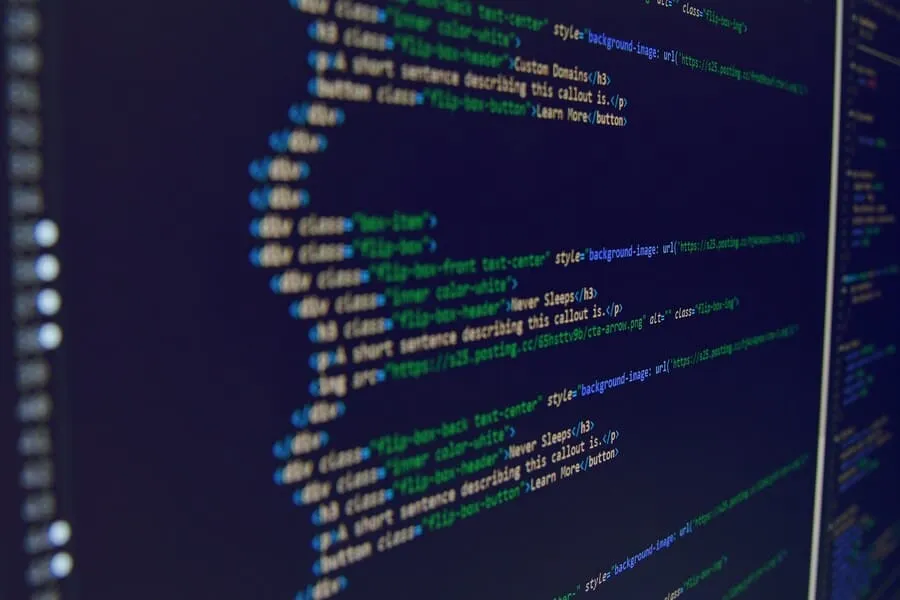
Especially the PHP templates. It requires real coding fluency, the payoff is having absolute authority over the final site speed, the specific design, and all the underlying logic that makes it function. Doing it from scratch is just how you keep the bloat out.
Setting Up a Professional Development Environment
The absolute hardest rule in WordPress builds is that you never touch a live site. A local setup enforces this by running an install directly on your computer. LocalWP is the standard tool for this job. Honestly, everyone just defaults to it.
Setting up a full stack of PHP, MySQL, Apache or Nginx in just a few clicks. With it, developers can run several local sites at once, but the required workflow stays highly rigid. You build locally and push changes to a private staging server, you only go live after tests pass.
There is always a huge temptation to skip this exact sequence for seemingly quick fixes. It happens all the time. Someone pushes what they think is a completely harmless CSS tweak directly to the live server and accidentally drops a semicolon into functions.php, the exact file loading the theme's custom code.
When that happens, WordPress instantly balks on the broken PHP. Just a bad functions.php file taking everything down. It is true that modern setups include built-in Fatal Error Protection, so instead of a blank white screen, users see a polite message stating 'The site is experiencing technical difficulties.'
That safety net starts off looking great, but it really just creates a false sense of trust. WordPress sends an email straight to the admin inbox with a clear log flagging the failed file. It also gives a secure Recovery Mode link to safely access the dashboard and fix the broken code. But the truth is that a paying client still saw a broken website.
You really just shouldn't be editing live pages. Relying on automated error emails is not a real workflow. LocalWP just removes the public risk. You can break things freely in private, then fix it all long before an actual user ever tries to load the page.
Understanding WordPress Core Languages
WordPress uses four core languages. To be fair, HTML gives you the basic page structure and CSS handles all the layout styling, but trying to treat every single language equally from day one is usually a huge mistake. Just headings, paragraphs, links, and images. For the backend logic, WordPress uses PHP, which you write custom theme files and plugins entirely in, to query the database, yank content, and build the HTML response.
You still need standard HTML for the template files. JavaScript handles the interactivity side of things, it runs menus, modals, and AJAX requests that load new content without a full page refresh. Truth be told, modern teams favor plain JavaScript or React for the Gutenberg editor, but chasing React immediately is a bad idea.
Nobody needs to master everything at once. You really don't have to learn all four right away. Most custom theme work starts strictly with PHP and CSS before interaction needs grow.
Introduction to Custom Theme and Plugin Development
A WordPress theme looks like a full application at first glance, but really it is just a folder of PHP files. Just files that control how content displays on screen. You only need index.php and style.css to start. A live theme adds separate templates like for single posts, archives, or the 404 page and the header and footer.
The WordPress Loop is the core PHP code, it fetches and displays posts. You have to understand the Loop to get how the platform works. It queries the database for posts matching the current URL. Then the Loop steps through those results and outputs the content.
The template hierarchy referees which PHP file actually loads for a given URL. For a single post, the system checks for single-{post-type}.php, then single.php, and finally index.php. It works down the chain. Knowing how this fallback mechanism operates lets developers target very specific page types with the exact right templates instead of endlessly guessing which file is actually responsible for rendering the page content.
Hooks serve as the main extension system, and they come in two types. An action hook runs a function at a set point during execution. For instance, it might add a script to the page footer. A filter hook intercepts data before output, like changing text before it displays. Themes and plugins rely on these hooks to function so custom code plugs in cleanly without editing core files.
One strict rule follows from all this. If a feature adds new behavior, build it as a plugin instead of inside a theme. This applies to custom post types, shortcodes, or API endpoints. Since themes are basically just visual display folders, you want that logic separated out. Plugin-based features survive a theme switch. Theme-based features just disappear.
Advanced Concepts and the Developer Mindset
Getting used to basic themes and plugins is fine for new coders, but real growth often means dropping the template system for good. The WordPress REST API serves content as JSON endpoints over HTTP, turning the site into a pure backend for headless builds. A React or Vue frontend pulls this data directly, and Golden Owl’s web development services team relies on this exact pattern. It leaves WordPress to just manage the content in the background, avoiding the strict limits of standard posts and pages.
Custom Post Types (CPTs) let coders set up exact content forms, such as a portfolio, a job board, or a product catalog. You register CPTs using register_post_type() in PHP, pairing them with custom fields to store exact data smoothly.
Clicking through the admin UI to handle all of this data wastes time, so you should use WP-CLI instead. This command-line tool runs installs, updates, database queries, and content imports instantly, saving hours on basic server tasks. The docs at developer.wordpress.org are well-kept and stand as the best reference for all of this work. Treat those official docs as your main source when building sites for work, and simply ignore most search engine tutorials.
Post-Launch Essentials for Any WordPress Site
Going live is not the end of the project. It is the start of ongoing maintenance. Both no-code users and developers share this responsibility.
Ongoing Maintenance and Security
WordPress Maintenance Isn't a Checklist. WordPress core, themes, and plugins get constant updates. While core updates add features and fix security holes, the real fight is with plugins. A constant battle. They often need patches for vulnerabilities in third-party code that attackers are always poking at.
The funny thing is, the maintenance routine looks simple, so people just skip it. You’re told to update WordPress core within days of a release and update plugins on a regular schedule after checking the changelog, which, let's be honest, is a whole process, and you’re also supposed to take a tested backup before any major update. Any update can break your site.
The most neglected step is the quarterly plugin audit. This is where the problems really start. Removing deactivated, abandoned, or unneeded plugins is essential, attackers can still read the code of an inactive plugin to hunt for an entry point.
A list of "basic security" tips seems helpful, but it can actually create a false sense of safety. Yes, use strong passwords and change the default "admin" username. A security plugin like Wordfence or Sucuri Security helps, as does moving the login URL from /wp-admin. But these are just the starting blocks. The real issue is just assuming you're secure because you checked a few boxes.
Foundational SEO and Performance Optimization
Post-launch SEO starts with the simple stuff. Your XML sitemap. You submit it to Google Search Console and Bing Webmaster Tools, and tools like Yoast or Rank Math can create this file for you. This just tells search engines your site exists and helps them find your pages.
People make performance way too complex after that. Your site’s speed is mostly set by two things before you even think about plugins.
First is hosting quality. It's a huge deal. A managed host with server-level caching has more impact on speed than any software you can install, and the second thing is your images, which are often the biggest single weight on your load times. Use the WEBP format, compress images before you upload, and set clear width and height attributes in your HTML, this stops layout shift.
Sure, a caching plugin like WP Rocket helps, but it’s not going to fix a fundamentally slow foundation. It stores pre-built HTML pages for faster access. And yes, Google’s Core Web Vitals, which includes things like Largest Contentful Paint (LCP) and Cumulative Layout Shift (CLS), do affect rankings. Tools like PageSpeed Insights and GTmetrix measure these and point to fixes.
Chasing a perfect score isn't the point. Just check performance monthly, not to tweak endlessly, but to make sure new plugins have not broken that solid foundation you already built.
Troubleshooting Common WordPress Errors
Most WordPress sites break in one of three ways. The most infamous is the White Screen of Death (WSoD). A blank page where your site should be. The name is dramatic, the cause is usually simple: a PHP syntax error from a bad copy-paste into `functions.php`, a missing semicolon, or a broken plugin. People panic when they see it and start doing surgery on their live site, which is the real problem.
Here’s the standard field dressing for that. First, see if `/wp-admin` still loads. If it does, a theme is the likely culprit; if not, it’s probably a plugin. You will need FTP or your host’s File Manager to get in. Go to `wp-content/plugins/` and rename the folder of any new plugin, you know, the one you just installed, like changing `contact-form-7` to `contact-form-7-disabled`. WordPress will then deactivate it. If the site comes back, you have found your problem. For a theme issue, you do the same thing in `wp-content/themes/` by renaming your active theme’s folder, which forces WordPress to fall back to a default.
The logic to isolate, disable, and test is fine, but doing it on a live site is just asking for trouble.
Then there's the "Error establishing a database connection." You might think this is a huge problem, but it's almost always simpler than it sounds. It just means the details in your `wp-config.php` file are wrong. Check the database name, username, and password in that file against your hosting panel’s settings. A fixed typo is usually all it takes.
Plugin and theme conflicts are the most common headache, and they often cause that White Screen of Death. The fix is the same slow process: deactivate all plugins, see if the issue vanishes, then reactivate them one by one. This whole reactive scramble is not the right way to do things. It's better to find the error before it goes live. Add `define('WP_DEBUG', true);` to `wp-config.php` on a staging site. Never on your public one. This debug mode will spit out the hidden PHP errors, letting you fix the problem in a safe space instead of while your visitors are watching.
A Professional Guide to Developing a Website on WordPress for Clients
Delivering WordPress for clients goes beyond technical skill. It adds project management, clear communication, and business responsibility.
The Client Project Lifecycle
A WordPress project needs a sequence. Scope creep and payment problems don't happen just because you skipped a step, they happen because people aren't using the process to get on the same page and avoid arguments later.
Discovery is about forcing the hard questions upfront. What's the goal, who's the audience, and what are the must-have features, like an e-commerce store. You also have to ask what success looks like in six months. The answers just become the scope of work, which is basically the agreement for what you're building.
Then comes design. This is the test. You have to show mockups before a single line of code is written because design changes after coding starts are the single biggest source of project delays and cost overruns. Getting client sign-off on a design isn't just a box to check; it’s the main thing that keeps the project from going off the rails.
The build phase is the assembly of that signed-off design in WordPress. This involves adding plugins, setting up forms, and testing every feature, literally every single one, against the approved scope.
The staging review is for catching bugs, it's not for adding new ideas. The client gets access in a private space to give feedback. One combined round. Those fixes happen before launch, not as a chaotic series of live edits.
Finally, you launch and hand over the keys. For what it's worth, some projects seem straightforward, but the discovery questions are actually hard to answer, and that's where our MVP development approach offers a different path. It is for startups that need a working product now, before committing to a full build.
Managing Client Projects and Payments
The biggest financial risk for a freelancer isn't usually a client who won't pay. It's one who never lets the project actually end. Your payment setup is your main tool for forcing a project to a close.
A deposit is the first line of defense, asking for 30–50% upfront covers your time if a project stalls and also filters out clients who aren't serious about finishing.
The final payment must be tied to delivery. Not launch. Your invoice is due when you hand over the finished work. Waiting for a site to go live makes your payment completely contingent on the client's own internal delays. You should keep admin access, hosting credentials, and DNS control until that invoice clears.
Scope creep and endless revisions are the other classic project killers. It's tempting to just agree when a client adds a new feature mid-project, but you need a process to note it, state that it's out of scope, and give a quick estimate. Define the number of included revision rounds in the contract and, just as important, your rate for any extra work. Most clients are fine with this when expectations are set from the start, because it helps everyone get the project to the finish line.
The Technical Handoff Process
The handoff can easily turn a profitable project into a support nightmare. A client who can’t update content will call for every small change, a client with full admin access and no guidance will break things and expect you to fix them for free. You're not trying to make them an expert, you just need to draw a clear line where your responsibility ends.
In practice though, this starts with user roles. Creating a separate client account with an Editor role isn't about mistrust, or at least not entirely, it's about building a fence. A simple fence. On most sites, this is enough to block access to the important settings and plugins, which is what prevents the kind of accidental damage that always seems to land right back on your plate.
A short, 10–15 minute Loom recording is your most important tool. Use it to show them how to update pages, add blog posts, and manage the media library. A video they can replay is more than just helpful, it’s also your proof that the handoff was completed.
Finally, you have to be blunt in your support terms. You want to be helpful, but you need to state the response time and rate for any work that happens after the handoff. Explain the plugin update process and remind them to back up first. Then, hand over the domain registrar and hosting credentials to the client. It's their infrastructure, you shouldn't be holding onto it.
WordPress Web Development Services Explained
At some point, the question changes from "can I build this?" to "should I?" Custom WordPress builds for business often benefit from a professional team, especially when the site needs third-party integrations, high traffic capacity, or a precise design.

What Do Professional Development Services Include?
Professional WordPress project is not about installing a theme and adding content, and it's a mistake to treat the job like a simple checklist. The real work is building a system. One where every piece actually supports the others.
This means a custom theme from a Figma or Adobe XD file has to be built for speed and not just for looks, though of course it has to look good too. Any plugin development must be secure from the start, a WooCommerce setup needs a single plan for speed (Core Web Vitals), security, and SEO setup. It's not just about checking boxes. It all gets cinched together with maintenance retainers for, you know, updates and backups.
Our website development team covers this full range, from single-page marketing sites to multi-site enterprise networks.
How Much Do WordPress Development Services Cost?
The cost for professional WordPress work is wide for a reason. A five-page marketing site on an existing theme can run $1,500–$5,000 with a freelancer, an agency will charge $5,000–$15,000. A custom-built WooCommerce store with API integrations starts at $15,000 and climbs from there. Truth be told, that big price jump isn't about adding more pages, it's the difference between assembling parts and engineering a custom system.
You cross that line when a project needs a custom design and not just a theme, or requires many unique page templates, plugin development for special features, or third-party integrations to a CRM or booking system. That’s a custom system. A complex e-commerce setup. A migration from another platform or a plan for ongoing care will also make the price swell. These aren't just add-ons; they are what makes a build custom in the first place. For a full breakdown of what drives these costs, see our guide on WordPress website development costs.
If your project includes a mobile app, our mobile app development team can handle both under one roof. This keeps the design language and, just as importantly, the backend structure consistent, because it's all part of the same system.
Examples of Successful WordPress Websites
It’s true that some of the web's most demanding sites use WordPress. The New York Times uses the VIP platform, TechCrunch has used it for most of its history, and Sony Music and the official Star Wars blog both run on it.
Thing is, the "WordPress" they use isn't really the same software you can download. Their success isn't about the platform, it's about the massive, you have to understand, ongoing investment in engineering and infrastructure. A massive engineering investment.
The ceiling for WordPress is really just about your budget, not the code. A well-built site with elite hosting and caching can handle millions of monthly visits, the limits you see elsewhere are not a software problem. It's a setup problem. A problem spawned from expecting top-tier performance without a top-tier budget.
Frequently Asked Questions
Can I develop a WordPress website for free?
The WordPress software itself is free, but that's not the whole story. The initial cost is zero, but the ongoing care isn't. A live site requires a domain name (about $10–20 per year) and web hosting, which can run from $3 to over $100 a month. While free themes and plugins can keep initial costs down, the domain and hosting are fixed expenses. A truly free, public website. There's no such thing.
What's the difference between WordPress.com and WordPress.org?
Honestly, this is the most important decision you'll make. WordPress.com is a hosted service from Automattic, it's a walled garden. It’s easy to start, but it limits your access to plugins, custom code, and even making money on its lower-tier plans. WordPress.org is the self-hosted, open-source software this guide is built around. You install it on your own hosting and get total control. For any serious business or custom project, having that control is why WordPress.org is the only professional option.
Do I need to know how to code to use WordPress?
No, you don't *need* to. You can build a site using visual builders like Elementor, but the moment you need a feature a plugin doesn't offer, or when you must diagnose a real performance issue, you are stuck. If you only rely on visual tools, you're just arranging things, not building the structure underneath. Coding isn't an "extra" skill; it is the foundation of professional-level work.
How do I build a website with WordPress and Elementor?
The process is pretty mechanical. First, install a lightweight theme, then the Elementor plugin. From there, open a page and click "Edit with Elementor" to launch the visual editor. You drag widgets from the left panel onto your page, click to configure them, and use the Style tab for visual changes. Elementor Pro includes a Theme Builder for designing site-wide headers and footers, which is a powerful shortcut, especially when you're starting out.
How do I become a WordPress website designer or developer?
These are not two equal paths. A "designer" who only uses visual tools like Elementor and Gutenberg is entering a very crowded market with a low ceiling. The no-code path is an entry point, but it's not a destination. A developer, who writes custom PHP, builds themes from scratch, and creates plugins, is working with the core architecture where the difficult problems, and the durable careers, are found. The choice isn't really about visuals versus code; it's about building a long-term, valuable skill set.
When you build a WordPress site, you basically have a choice. The no-code path uses a theme, a page builder, and, you know, a bunch of plugins to get what looks like a professional site. Then there's custom development. Real structural control. The problem is that the no-code path just doesn't really go anywhere long-term.
Look, both paths start with the same stuff: decent hosting, SSL, and a religious habit of keeping everything updated. The platform itself is mature and meant to scale, a site held together by a page builder just gets bloated with things like all those plugins and eventually breaks. It just breaks. For any serious site, the only real approach is custom work.
You can skip that whole painful learning curve, but you have to build it right the first time. Our team handles everything, from hosting setup and custom plugin work to launch. Talk to our development team to outline what you need.
Share this page


Table of Content

Subscribe to Golden Owl blog
Stay up to date! Get all the latest posts delivered straight to your inbox